








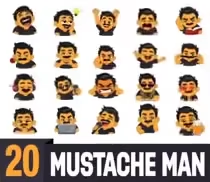


When you purchase/download an animation from Motiopix the ZIP archive will include the JSON file.
To embed a Lottie JSON animation on a webpage, you need two things: a Lottie player script and a container element where the animation will render.
The preview below shows a Lottie JSON embedded on a website.
See the Pen Lottie JSON – Basic HTML Embed by Motio Pix (@motiopix) on CodePen.
<!-- Container where the animation will render -->
<div id="mp-lottie" style="width:320px;height:320px;"></div>

<!-- Load the Lottie Web player (lottie-web / bodymovin) -->
<script src="https://cdnjs.cloudflare.com/ajax/libs/bodymovin/5.12.2/lottie.min.js"></script>
<script>
  // Create and load the animation
  lottie.loadAnimation({
    // The element to render into
    container: document.getElementById('mp-lottie'),

    // Renderer type: 'svg' is most common on the web
    renderer: 'svg',

    // loop: true repeats forever, false plays once
    loop: true,

    // autoplay: true starts immediately, false waits for anim.play()
    autoplay: true,

    // Insert your hosted animation URL here
    path: 'https://dev.motiopix.com/files/lottie.json'
  });
</script>
Where to put the code
- Place the container div where you want the animation to appear.
- The script tags can be placed directly after the container or near the end of the page before the closing body tag.
How sizing works
The animation always fills the size of its container. Changing the width and height of the div will change the rendered size.
Responsive sizing example
<!-- Responsive wrapper (fills available width up to 420px) -->
<div style="max-width:420px;width:100%;">
  <!-- Square container using aspect-ratio; change 1/1 to 16/9, 4/3, etc. if needed -->
  <div id="mp-lottie-responsive" style="width:100%;aspect-ratio:1/1;"></div>
</div>

<!-- Load the Lottie Web player -->
<script src="https://cdnjs.cloudflare.com/ajax/libs/bodymovin/5.12.2/lottie.min.js"></script>
<script>
  // Load the animation into the responsive container
  lottie.loadAnimation({
    container: document.getElementById('mp-lottie-responsive'),
    renderer: 'svg',
    loop: true, // true repeats forever, false plays once
    autoplay: true, // true starts immediately, false waits for play()
    path: 'https://dev.motiopix.com/files/lottie.json' // Insert your hosted animation URL here
  });
</script>
Autoplay, loop, and speed
These options control what happens when the page loads and how the animation plays.
- autoplay: true means it starts playing automatically. autoplay: false means it loads but waits until you call play().
- loop: true means it repeats forever. loop: false means it plays once and stops on the last frame.
- setSpeed(x): controls playback speed. 1 is normal, 2 is about twice as fast, 0.5 is about half speed. Negative values play in reverse.
In the example below, the animation loads with autoplay and loop enabled, then setSpeed(1.75) makes it play faster than normal.
See the Pen Lottie JSON – Basic HTML speed, autoplay, loop by Motio Pix (@motiopix) on CodePen.
<!-- Container where the animation will render -->
<div id="mp-lottie-speed" style="width:320px;height:320px;"></div>

<!-- Load the Lottie Web player -->
<script src="https://cdnjs.cloudflare.com/ajax/libs/bodymovin/5.12.2/lottie.min.js"></script>
<script>
  // Keep a reference (anim) so we can control speed later
  var anim = lottie.loadAnimation({
    container: document.getElementById('mp-lottie-speed'),
    renderer: 'svg',

    // true repeats forever, false plays once
    loop: true,

    // true starts immediately, false waits for anim.play()
    autoplay: true,

    // Insert your hosted animation URL here
    path: 'https://dev.motiopix.com/files/lottie.json'
  });

  // Speed examples:
  // 1 = normal speed
  // 2 = about 2x faster
  // 0.5 = about half speed (slower)
  anim.setSpeed(1.75);
</script>
Optional play and pause controls
<!-- Container where the animation will render -->
<div id="mp-lottie-controls" style="width:320px;height:320px;"></div>

<!-- Simple UI buttons (you can style these however you like) -->
<div style="margin-top:10px;display:flex;gap:10px;">
  <button type="button" id="mp-play">Play</button>
  <button type="button" id="mp-pause">Pause</button>
</div>

<!-- Load the Lottie Web player -->
<script src="https://cdnjs.cloudflare.com/ajax/libs/bodymovin/5.12.2/lottie.min.js"></script>
<script>
  // Load the animation
  var anim2 = lottie.loadAnimation({
    container: document.getElementById('mp-lottie-controls'),
    renderer: 'svg',
    loop: true, // true repeats forever, false plays once
    autoplay: true, // true starts immediately, false waits for anim2.play()

    // Insert your hosted animation URL here
    path: 'https://dev.motiopix.com/files/lottie.json'
  });

  // Play button
  document.getElementById('mp-play').addEventListener('click', function () {
    anim2.play();
  });

  // Pause button (stops on the current frame)
  document.getElementById('mp-pause').addEventListener('click', function () {
    anim2.pause();
  });
</script>
Common issues and fixes
- The JSON file must be publicly accessible and not require authentication.
- The page and animation URL must both use https to avoid blocked requests.
- The container must have a visible width and height.
- Check the browser console for network or CORS errors if nothing appears.
Performance tip
Avoid having too many looping animations on the same page. Pause animations that are not visible to keep pages smooth.
Was this article helpful?
0 out of 0 found this helpful